How to Convert .ipynb to HTML


A .ipynb file is a Jupyter Notebook: JSON that bundles your code, outputs, charts, and markdown. Exporting it to HTML turns that into a single, self-contained web page anyone can open in a browser — no Python, no Jupyter, no kernel — which makes HTML the easiest way to share, host, or embed a notebook.
Quick answer
The fastest way to convert a notebook to HTML is nbconvert, which ships with Jupyter (no extra install):
jupyter nbconvert --to html notebook.ipynbThat writes notebook.html in the same folder — a standalone page with the CSS, images, and outputs embedded, so it works offline and on any device. If you would rather not touch the command line, every notebook environment can export HTML too. Pick the method that matches what you already have:
| Method | Install needed | Best for |
|---|---|---|
nbconvert --to html | Jupyter (built in) | Scriptable, reproducible exports |
| Jupyter UI export | Nothing extra | One-off export from the notebook you're in |
| VS Code export | VS Code + Jupyter ext. | People already coding in VS Code |
| Google Colab | Nothing (cloud) | Notebooks already in Colab |
| Online converter | Nothing | No local Python at all |
No local Python at all? RunCell's online ipynb-to-HTML converter (opens in a new tab) runs the same conversion in the browser, client-side, so the notebook never leaves your machine.
- Qwen3.8 27B: Specs, Memory Requirements, and How to Run It
- Haiku pricing: Haiku 5.5 vs 4.5 vs GPT-6 Luna
- Python 3.15 Upgrade Guide: Install with uv, Use Lazy Imports, and Check Your Data Stack
- Claude Code Mods Tutorial: Build and Test Your First Mod, Plus 15 Community Examples
- How to Use Pi Coding Agent 1.0: Install, Connect a Model, and Run Your First Task
- How to Use Laya: Classify Text in a pandas DataFrame with the Open-Source Jev Alternative
- Claude Code Reads AGENTS.md Now: Setup, Loading Modes, and Sharing One File with Codex, OpenCode, and Cursor
- How to View Deleted Reddit Posts (2026 Guide): 5 Ways That Still Work
- GPT Image 2.5: How to Use It, Flare vs Sunburst, and API Pricing
- How to Use DeepSeek Harness: Install, Set Up, and Run Your First Agent
- Runcell Science: An Open Source Alternative to Claude Science for Research Workflows
- How to Make Mac Not Sleep: Keep Codex, Claude Code, and AI Agents Running
- OpenClaw vs ZeroClaw vs Pi Agent vs Nanobot: Which AI Agent Stack Should You Choose in 2026?
- Can Claude Code Analyze Jupyter Notebooks for Data Science? What It Actually Does
- Claude Code Routines: Why AI Agent Cron Jobs Matter
- Claude Code Desktop Bypass Permissions: How to Enable It
- How to Build Two Python Agents with Google’s A2A Protocol - Step by Step Tutorial
- Top 10 growing data visualization libraries in Python in 2025
Method 1: nbconvert (the canonical way)
nbconvert is the official Jupyter export tool. It comes with Jupyter Notebook, JupyterLab, and the Anaconda distribution, so if you can run notebooks you already have it — no new packages required:
jupyter nbconvert --to html notebook.ipynbYou'll find notebook.html in the same directory. It's a self-contained page with embedded CSS, JavaScript, and base64-encoded images, so Matplotlib and Seaborn charts render exactly as they did in the notebook, and the file works even when opened offline.
A few useful variations:
# write the output somewhere specific
jupyter nbconvert --to html notebook.ipynb --output-dir ./public

# hide the input code cells, keep only outputs (great for reports)
jupyter nbconvert --to html --no-input notebook.ipynb

# leaner page that links assets instead of inlining everything
jupyter nbconvert --to html --template lab notebook.ipynb
If the command itself isn't found, see Tips & troubleshooting.
Method 2: Export from the Jupyter UI
Inside JupyterLab or the classic Notebook interface you never need the terminal:
- JupyterLab:
File > Save and Export Notebook As… > HTML - Classic Notebook:
File > Download as > HTML (.html)
Either way, Jupyter quietly calls nbconvert under the hood and hands you the downloaded .html file. This is the quickest path when you're already looking at the notebook you want to export.
Method 3: Export to HTML in VS Code
If you edit notebooks in Visual Studio Code with the Jupyter extension:
- Open the
.ipynbfile in VS Code's notebook editor. - Click the
...(More Actions) menu at the top of the notebook. - Choose Export and select HTML.
- Pick a save location.
No separate extension is needed — the Jupyter extension bundled with the Python tooling handles the conversion through nbconvert.
Method 4: Google Colab
Colab does not have a first-party "Export to HTML" button yet, but you have two easy options:
- Download, then convert locally:
File > Download > Download .ipynb, then runjupyter nbconvert --to html notebook.ipynb(or use an online converter). - Run nbconvert in a Colab cell so everything stays in the browser:
!jupyter nbconvert --to html notebook.ipynbThe generated file appears in Colab's file browser (folder icon on the left); right-click it to download.
Method 5: Online converters
When you have no local Python at all, an online converter handles everything in the browser. Upload the .ipynb, pick HTML, and download the result.
RunCell (opens in a new tab) offers a free ipynb-to-HTML converter that runs client-side — the notebook is processed in your browser and never uploaded to a server, which makes it the privacy-friendly choice for work or sensitive notebooks. Plots are embedded as images so charts render just like in Jupyter.
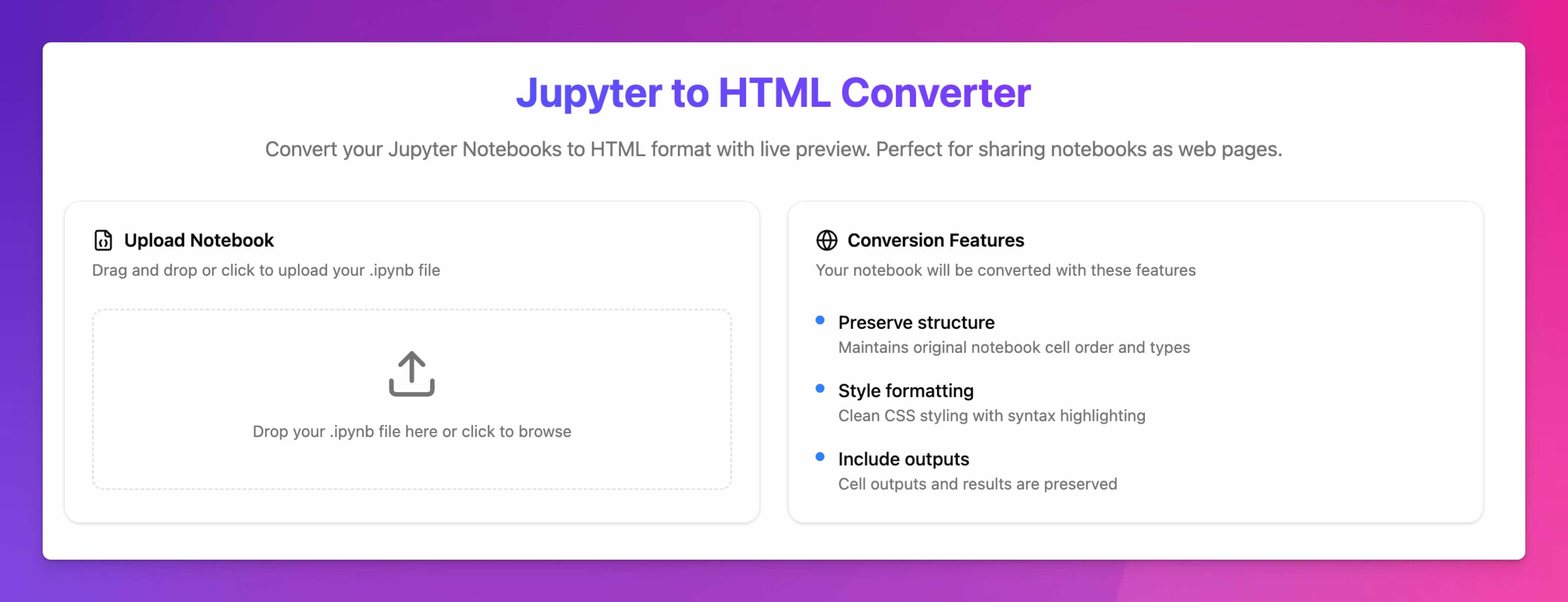
Other general-purpose options include Vertopal and CoolUtils, which upload your file to their servers before converting. Avoid sending notebooks that contain credentials, private data, or proprietary code to third-party sites.
Tips & troubleshooting
jupyter: command not found or nbconvert: command not found
nbconvert isn't installed or isn't on your PATH. Install it and call it through Python to be safe:
pip install nbconvert
python -m jupyter nbconvert --to html notebook.ipynb
The HTML file is huge
Notebooks with many plots inflate quickly because images are embedded inline as base64. To shrink the output:
- Lower the figure resolution before exporting, e.g.
plt.savefig(..., dpi=80)or setplt.rcParams["figure.dpi"] = 80. - Use
--no-inputto drop code cells if readers only need the results. - Use
--template lab(or--template basic) for a lighter HTML shell.
Interactive widgets (Plotly, ipywidgets) look static
nbconvert embeds widget output when the data is saved in the notebook. Plotly figures usually stay interactive; richer ipywidgets often degrade to a static snapshot in a plain HTML export. Make sure the widget state is saved (Widgets > Save Notebook Widget State in Jupyter) before converting, and re-run all cells so the latest output is captured.
Convert many notebooks at once
Loop over the folder in your shell:
for f in *.ipynb; do jupyter nbconvert --to html "$f"; doneSome cells are missing from the output
nbconvert exports the saved notebook, not the live kernel. Run all cells and save the notebook before converting so the latest outputs are included.
FAQ
What is the command to convert ipynb to HTML?
Run jupyter nbconvert --to html notebook.ipynb. nbconvert ships with every standard Jupyter install, so no extra package is needed. The output is a self-contained notebook.html.
Do I need to install anything to convert ipynb to HTML?
No. If you can run Jupyter notebooks, nbconvert is already installed. You can also export to HTML from the Jupyter UI, VS Code, or an online converter without touching the command line.
Should I export to HTML or PDF?
HTML is responsive, searchable, and easy to embed in blogs or dashboards, and it keeps interactive plots and copy-pastable code. Choose PDF when you need a fixed, printable document — see our guide on converting .ipynb to PDF.
How do I convert ipynb to HTML in Google Colab?
Colab has no direct HTML export. Either download the notebook (File > Download > Download .ipynb) and run nbconvert locally, or run !jupyter nbconvert --to html notebook.ipynb in a Colab cell and download the file from the file browser.
My HTML file is too large — how do I shrink it?
Inline images are usually the cause. Lower figure DPI in the notebook (plt.savefig(..., dpi=80)), drop input cells with --no-input, or use a lighter template such as --template lab.
Related Guides
- How to Convert .ipynb to PDF
- How to Start JupyterLab
- What is
__pycache__in Python - How to Run Python Scripts