Streamlit Session State: How to Persist Values Across Reruns

- Name
- Olaf Källström
Updated on
st.session_state is Streamlit's built-in way to remember values for one user session across reruns.
If you have ever clicked a button, changed a filter, and watched your app "forget" what just happened, session state is usually the missing piece. It helps Streamlit apps feel continuous instead of stateless.
In Streamlit, the script reruns from top to bottom whenever a widget changes. A "session" is one user's live interaction with the app. Session state is the place where Streamlit keeps values that should survive those reruns for that one session.
Why session state matters
Without session state, many apps feel awkward:
- counters reset
- multi-step flows collapse
- filters lose their previous values
- forms behave like each rerun is a fresh start
With session state, you can build apps that remember what the user already did.
That usually means better:
- interactivity
- flow control
- user experience
- predictability in multi-step apps
After reading this guide, you should be able to:
- keep values alive across reruns
- bind widgets directly to state
- build callbacks and multi-step flows cleanly
- know when session state is the right tool and when caching is better
How session state works
This concept becomes much easier once you picture the rerun cycle.
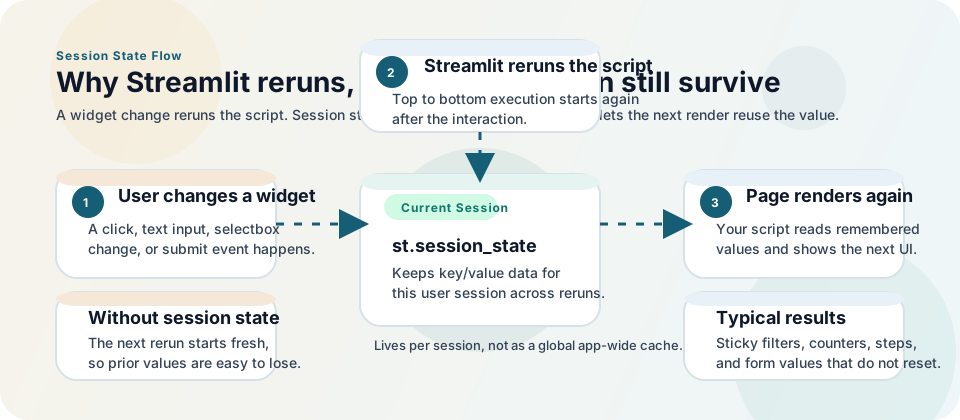
The important idea is simple:
- a widget interaction triggers a rerun
- the script starts again from top to bottom
st.session_statecarries selected values, counters, steps, and drafts into that next rerun
Without session state, the rerun still happens, but the app has much less memory of what the current user just did.
This is also why session state feels abstract at first. It is not a visible widget by itself. It is the per-session memory layer that makes Streamlit's rerun model feel continuous.
Quick Start
import streamlit as st

if "count" not in st.session_state:
    st.session_state.count = 0

if st.button("Increment"):
    st.session_state.count += 1

st.write("Count:", st.session_state.count)
Every button click reruns the app, but the counter stays because the value lives in st.session_state.
What st.session_state is good for
Use session state for values that belong to one user's ongoing interaction, such as:
- counters
- filter selections
- wizard steps
- selected tabs or views
- draft form values
- user-specific context
Do not use it for:
- global shared models
- reusable database clients
- expensive data loading
Those belong in st.cache_resource or st.cache_data.
Initialize state safely
The most common error is reading a key before it exists.
Pattern 1: explicit guard
import streamlit as st

if "theme" not in st.session_state:
    st.session_state.theme = "light"
Pattern 2: setdefault
import streamlit as st

st.session_state.setdefault("page_size", 25)
Both patterns are fine. The important thing is to initialize before you read.
Widgets and session state
Any widget with a key is automatically added to session state.
import streamlit as st

st.text_input("Project name", key="project_name")
st.selectbox("Environment", ["dev", "staging", "prod"], key="env")

st.write(st.session_state.project_name)
st.write(st.session_state.env)
This is one of the nicest parts of Streamlit's design. You often do not need a separate state container or a manual sync step. The widget and the state key can be the same thing.
A good mental model is: widgets collect input, and session state remembers the latest input for the current user session.
Use callbacks for cleaner interaction logic
Callbacks run first, then Streamlit reruns the page. They are useful when one interaction should update several values or trigger a state transition.
import streamlit as st

st.session_state.setdefault("name", "")
st.session_state.setdefault("submitted_name", "")


def save_name() -> None:
    st.session_state.submitted_name = st.session_state.name.strip()


st.text_input("Your name", key="name")
st.button("Save", on_click=save_name, type="primary")

if st.session_state.submitted_name:
    st.success(f"Saved: {st.session_state.submitted_name}")
Widgets that support callbacks
on_changeworks with input widgets such asst.text_input,st.selectbox, andst.slideron_clickworks with button-style widgets such asst.buttonandst.form_submit_button
Practical patterns
Toggle advanced options
import streamlit as st

st.session_state.setdefault("show_advanced", False)

if st.button("Toggle advanced options"):
    st.session_state.show_advanced = not st.session_state.show_advanced

if st.session_state.show_advanced:
    st.checkbox("Enable audit logging")
    st.checkbox("Use experimental prompt template")
Multi-step flow
import streamlit as st

st.session_state.setdefault("step", 1)

if st.session_state.step == 1:
    st.write("Step 1: Upload data")
    if st.button("Continue"):
        st.session_state.step = 2
        st.rerun()

elif st.session_state.step == 2:
    st.write("Step 2: Configure model")
    if st.button("Back"):
        st.session_state.step = 1
        st.rerun()
Remember filter selections
import streamlit as st

st.multiselect(
    "Regions",
    ["APAC", "EMEA", "LATAM", "North America"],
    key="selected_regions",
)

st.write("Current filters:", st.session_state.selected_regions)
Session state with forms
Forms batch widget updates until submission. Inside a form, only st.form_submit_button can have a callback.
import streamlit as st

st.session_state.setdefault("email", "")
st.session_state.setdefault("saved_email", "")


def persist_email() -> None:
    st.session_state.saved_email = st.session_state.email


with st.form("profile_form"):
    st.text_input("Email", key="email")
    st.form_submit_button("Save profile", on_click=persist_email)

if st.session_state.saved_email:
    st.write("Saved email:", st.session_state.saved_email)
What session state improves in real projects
Session state is one of the features that lets Streamlit move beyond simple demos.
It can help you build:
- step-by-step data workflows
- interactive dashboards with sticky filters
- annotation or review tools
- prototype apps that remember what the user already selected
- form-driven admin tools
That is why it matters. It is not just a syntax trick. It is a capability that lets the app behave more like an actual application.
Common errors and limits
1. Missing-key exceptions
You tried to read a key before initializing it. Add an if key not in st.session_state guard or use setdefault.
2. Modifying a widget's value after it has been created
If a widget already exists on the page, do not assign a new value to the same key later in that run. Initialize first, or update through callbacks and reruns.
3. Treating session state like a button state store
Button-like widgets such as st.button, st.download_button, and st.file_uploader are not designed to have their widget value set manually through session state assignment.
4. Losing state after reload
Session state is tied to the browser session and the WebSocket connection. A browser reload or navigation event can reset it.
5. Storing too much data
You can store DataFrames, lists, and custom objects, but remember that session state lives in memory.
Session state vs caching
These tools solve different problems.
| Need | Use |
|---|---|
| Keep a user's current filters | st.session_state |
| Remember which step a user is on | st.session_state |
| Avoid rerunning a slow query | st.cache_data |
| Reuse a model across users | st.cache_resource |
If the value is user-specific, use session state. If the goal is performance, use caching.
Advanced note: serializable session state
Streamlit can optionally enforce that session state values are serializable through the runner.enforceSerializableSessionState config setting. Most apps do not need this, but some stricter deployment environments do.
Troubleshooting
Why does my state not update immediately?
Remember the order of execution: callback first, then full rerun. If you update state in a callback, read the updated value after the rerun.
Why does my text input keep resetting?
You are probably:
- recreating the widget with a different
key - overwriting the same state key later in the script
- resetting state during every rerun
Can I persist session state across pages?
Yes. Streamlit supports session state across pages in a multipage app as long as the session stays alive.
Can I store a DataFrame in session state?
Yes, but use it for user-specific working data, not as a global cache. Large shared datasets belong in cached functions.
Related Guides
Frequently Asked Questions
What is st.session_state in simple terms?
It is Streamlit's way of remembering values for one user session across reruns.
How do I initialize st.session_state?
Initialize each key before reading it with either if "key" not in st.session_state or st.session_state.setdefault("key", value).
Does st.session_state survive reruns?
Yes. That is its main purpose.
What is the difference between session state and cache in Streamlit?
Session state stores per-user interaction data. Cache stores reusable computation results or shared resources to improve performance.