Claude Code Bypass Permissions: Desktop Toggle, CLI Flags, and Error Fixes


Bypass permissions is the Claude Code permission mode that stops the agent asking you to approve every file edit and shell command. It is one of four modes — default, acceptEdits, plan, and bypassPermissions — and the mode you pick decides how much of the session you have to babysit.
Quick answer
In the CLI, one command:
claude --permission-mode bypassPermissionsIn Claude Code Desktop, it is a toggle you have to enable once:
| Step | Action |
|---|---|
| 1 | Open Claude Code Desktop |
| 2 | Click the profile menu in the lower-left corner |
| 3 | Click Settings |
| 4 | Select Claude Code in the settings sidebar |
| 5 | Turn on Allow bypass permissions mode |
| 6 | In your session, pick Bypass permissions in the mode selector (or press Shift+Tab to cycle) |
When not to turn it on: any repo that can reach production. Bypass permissions skips prompts for shell commands too, so a cloud CLI already authenticated to prod, a deploy script, a migration runner, or a directory holding secrets or customer data is the wrong place for it. In those repos, use acceptEdits plus an allowlist instead — see the section below. Anthropic's own guidance is that bypassPermissions belongs in isolated environments.
If you landed here from an error message rather than a how-to, jump straight to Permission mode couldn't be changed or Bypass permissions mode was disabled by settings.
- Qwen3.8 27B: Specs, Memory Requirements, and How to Run It
- Haiku pricing: Haiku 5.5 vs 4.5 vs GPT-6 Luna
- Python 3.15 Upgrade Guide: Install with uv, Use Lazy Imports, and Check Your Data Stack
- Claude Code Mods Tutorial: Build and Test Your First Mod, Plus 15 Community Examples
- How to Use Pi Coding Agent 1.0: Install, Connect a Model, and Run Your First Task
- How to Use Laya: Classify Text in a pandas DataFrame with the Open-Source Jev Alternative
- Claude Code Reads AGENTS.md Now: Setup, Loading Modes, and Sharing One File with Codex, OpenCode, and Cursor
- How to View Deleted Reddit Posts (2026 Guide): 5 Ways That Still Work
- GPT Image 2.5: How to Use It, Flare vs Sunburst, and API Pricing
- How to Use DeepSeek Harness: Install, Set Up, and Run Your First Agent
- Runcell Science: An Open Source Alternative to Claude Science for Research Workflows
- How to Make Mac Not Sleep: Keep Codex, Claude Code, and AI Agents Running
- OpenClaw vs ZeroClaw vs Pi Agent vs Nanobot: Which AI Agent Stack Should You Choose in 2026?
- Can Claude Code Analyze Jupyter Notebooks for Data Science? What It Actually Does
- Claude Code Routines: Why AI Agent Cron Jobs Matter
- Claude Code Desktop Bypass Permissions: How to Enable It
- How to Build Two Python Agents with Google’s A2A Protocol - Step by Step Tutorial
- Top 10 growing data visualization libraries in Python in 2025
Which permission mode do you actually want?
Most people search for "bypass permissions" when what they want is fewer prompts, and bypass is only one of four ways to get that. Claude Code exposes these modes:
| Mode | Value in config / flag | What it does | Best for |
|---|---|---|---|
| Default | default | Asks before most file edits and shell commands. Approvals are remembered per rule if you choose "always allow" | New repos, sensitive work, first sessions in an unfamiliar codebase |
| Accept edits | acceptEdits | Auto-approves file edits, still asks before shell commands | The most common sweet spot: fast refactors where you still gate what runs in your terminal |
| Plan | plan | Read-only. Claude investigates and proposes a plan but cannot edit or run anything | Scoping a change, exploring a repo you do not want touched, code review |
| Bypass permissions | bypassPermissions | Skips permission prompts entirely, except for protected paths | Sandboxed work: devcontainer, VM, disposable branch, throwaway repo |
| Auto (Desktop) | Desktop toggle Allow auto permissions mode | Fewer prompts, but background safety checks still run | Long Desktop tasks where you want speed without full bypass |
Two things people get wrong here:
acceptEditscovers most of the pain. The interruption people complain about is usually the edit prompt, not the command prompt. Switching toacceptEditsremoves it without handing over your shell.- Bypass is a session state, not a preference. Treat it as something you turn on for one contained task and turn off after you review the diff, not as your permanent default.
You can set the starting mode per project instead of typing a flag every time. In .claude/settings.json:
{
  "permissions": {
    "defaultMode": "acceptEdits"
  }
}
Enable bypass permissions in Claude Code Desktop
The Desktop toggle is a gate, not the mode itself. Turning it on makes Bypass permissions selectable; you still choose it in the session.
Step 1: open the lower-left profile menu
Open Claude Code Desktop and click your profile or personal menu in the lower-left corner.
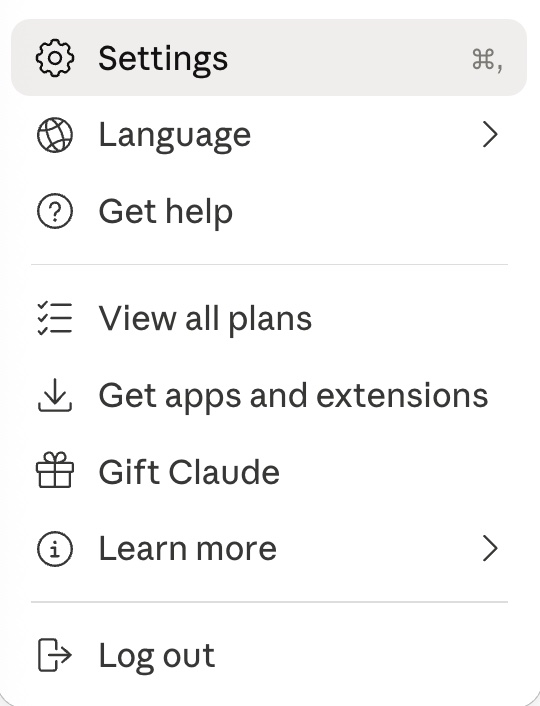
Open the lower-left personal menu, then choose Settings.
Step 2: Settings, then Claude Code
Click Settings, then select Claude Code in the sidebar. Bypass permissions is not a general account setting — it lives under Claude Code because it changes how coding sessions handle tool approvals. This page also holds permission modes, preview behavior, and worktree location.
Step 3: turn on Allow bypass permissions mode
Under Claude code desktop settings, enable Allow bypass permissions mode.
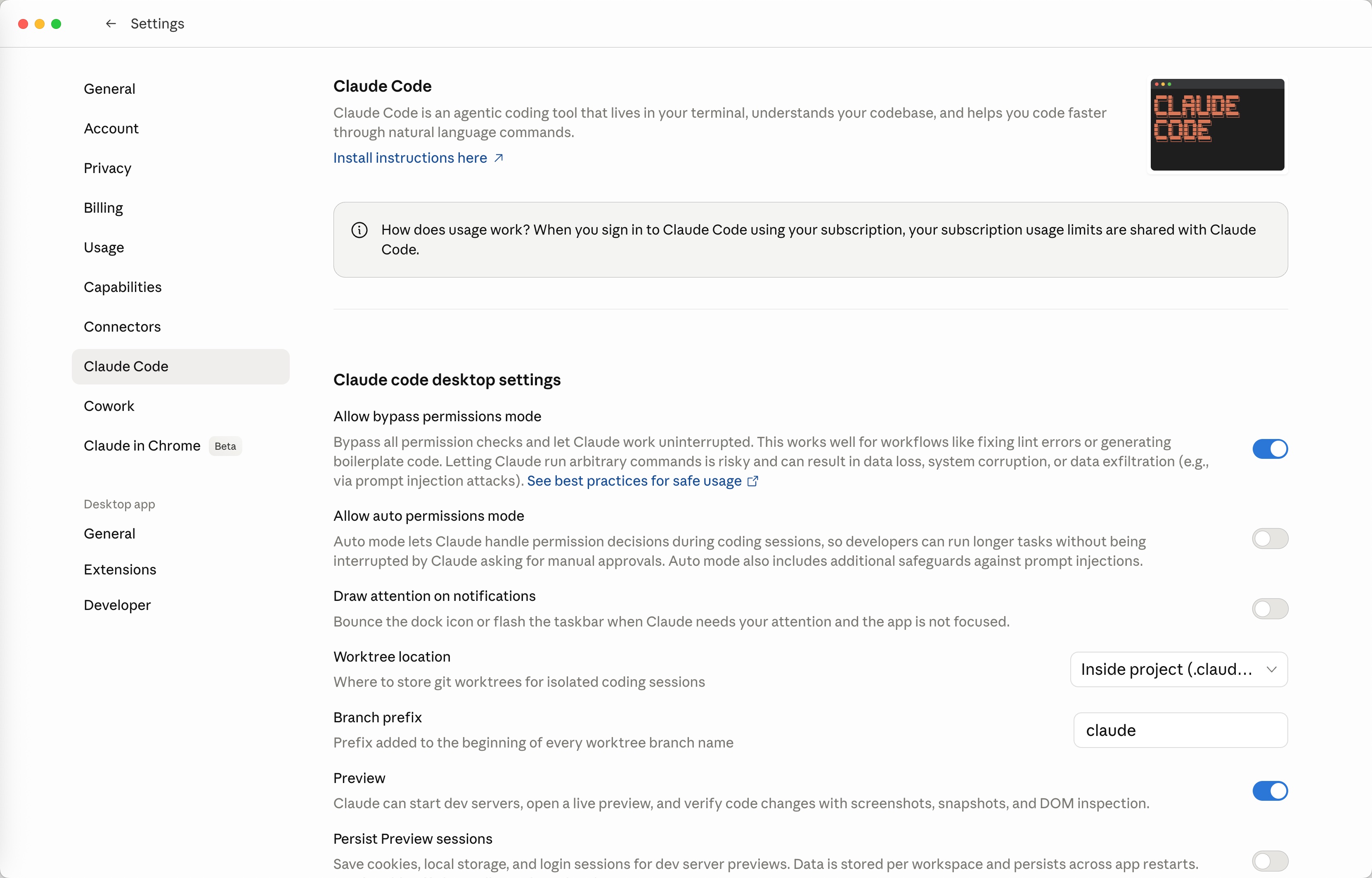
The Bypass permissions switch lives under Settings -> Claude Code.
Step 4: select the mode in your session
Open or restart the session where you want it, then pick Bypass permissions in the permission mode selector next to the prompt box. If you skip this step the toggle appears to do nothing — that is the single most common complaint about this setting.
Claude Code CLI: every bypass flag and control
| Control | What it does |
|---|---|
claude --permission-mode bypassPermissions | Starts the session directly in bypass mode. This is the current, documented spelling |
claude --permission-mode acceptEdits | Starts in accept-edits mode |
claude --permission-mode plan | Starts read-only in plan mode |
claude --dangerously-skip-permissions | Older equivalent of bypassPermissions. Still works, but the mode form is clearer |
claude --allow-dangerously-skip-permissions | Makes bypass available in the session without starting in it |
| Shift+Tab (inside a session) | Cycles permission modes live. Fastest way to drop out of bypass when you get nervous |
/permissions (inside a session) | Opens the permission rules UI to add allow/deny rules |
permissions.defaultMode in .claude/settings.json | Sets the mode a project starts in |
Flags that do not exist: --bypass-permission, --bypass-permissions, --bypass, and --yolo. These get searched for constantly and none of them are real. If you typed one and got an unknown-option error, use --permission-mode bypassPermissions.
Note the spelling: the mode value is camelCase bypassPermissions. Lowercase bypasspermissions is not accepted by --permission-mode.
Fix: "Permission mode couldn't be changed. You can try again."
This appears when the client asks to switch into a mode the current environment will not grant. Retrying rarely helps — the block is almost always configuration. Work down this list:
| Check | How to confirm | Fix |
|---|---|---|
| 1. The Desktop toggle is off | Settings -> Claude Code -> is Allow bypass permissions mode on? | Turn it on, then restart the session. This is the most common cause by a wide margin |
| 2. A managed policy blocks the mode | You are on a Team/Enterprise or company-managed machine | An admin has disabled bypass mode via managed settings. You cannot override it locally — ask IT |
| 3. The session predates the change | You flipped the toggle while a session was already open | Close the session and start a new one. Existing sessions do not re-read the gate |
| 4. The folder is not trusted yet | Did you get a "do you trust the files in this folder" prompt you dismissed? | Reopen the directory and accept the trust prompt, then switch modes |
| 5. Stale client version | Compare claude --version against the current release | Update Claude Code / Claude Desktop and restart the app |
If all five check out and the message persists, switch modes from the CLI instead (claude --permission-mode bypassPermissions). If the CLI accepts the mode and the Desktop app does not, the problem is the Desktop gate or a managed policy, not your account.
Fix: "Bypass permissions mode was disabled by settings"
This is a different message with a much narrower cause: a settings policy on the machine explicitly disables the mode. It is typically applied through managed settings on a company-administered device, and it is intentionally not overridable from user settings — that is the whole point of the policy.
Your options are:
- Ask whoever administers the machine to relax the policy, or to scope the exception to a specific repo.
- Use
acceptEditsplus an explicit allowlist, which usually gets you 90% of the speed with none of the policy conflict. See the next section. - Run the work in a container or VM that is not covered by the policy, if your organization permits it.
Fix: --dangerously-skip-permissions refuses to run
If you launched Claude Code with sudo or as root, the flag is refused deliberately — skipping permission checks while running with root privileges is exactly the combination that turns a bad tool call into an unrecoverable one. Run Claude Code as your normal user. If you genuinely need elevated privileges, isolate the work in a container instead of elevating the agent.
Allow specific commands instead of bypassing everything
Most "I want Claude Code to stop asking" problems are better solved with permission rules than with bypass mode. Rules are per-project, reviewable in git, and they do not disarm the prompts for the commands you actually care about.
In .claude/settings.json:
{
  "permissions": {
    "defaultMode": "acceptEdits",
    "allow": [
      "Bash(npm run test:*)",
      "Bash(npm run lint)",
      "Bash(git status)",
      "Bash(git diff:*)"
    ],
    "deny": [
      "Read(./.env)",
      "Read(./secrets/**)",
      "Bash(curl:*)"
    ]
  }
}
What this buys you:
- The edit-test-fix loop stops prompting, because the test and lint commands are pre-approved.
.envandsecrets/stay unreadable even when you do flip to a looser mode.- Anything you did not list still asks — so an unexpected
rm,deploy, orpsqlstill stops and waits.
You can build the same rules interactively with /permissions inside a session, or by choosing "always allow" the first time Claude asks about a command you trust.
Should you use bypass permissions?
Use it when the workspace is contained and the cost of repeated prompts is higher than the risk of letting Claude continue.
Good fits: a disposable branch, a devcontainer, a VM, a sandboxed local repo, repetitive lint/format/test-fix work, generated boilerplate you will review with git diff.
Poor fits: repos with production deploy scripts, workspaces containing secrets or customer data, cloud CLIs already logged into production, tasks that can delete/migrate/publish real resources, code you have not read.
The practical habit: turn it on for one contained task, review the diff, then Shift+Tab back to a stricter mode. Bypass permissions is faster, not safer.
If you do leave it on, a small Claude Code mod can refuse the few commands you never want run unattended, such as git reset --hard or a force push to main, before they reach the shell.
A note for Jupyter workflows
Bypass permissions helps Claude Code move faster in a code workspace, but notebook work has a different bottleneck. In Jupyter the hard part is not approving edits — it is whether the agent understands live notebook state: current variables, DataFrames, cell outputs, execution order, and kernel errors. Removing approval prompts does not give an agent any of that.
If your workflow is data analysis, EDA, feature engineering, or model debugging inside notebooks, RunCell (opens in a new tab) is worth a look. It is a Jupyter-native AI agent that reads notebook context, understands DataFrames and outputs, and can generate, run, and debug cells without forcing you into a terminal-first loop.
For a deeper comparison, see Jupyter AI RunCell for Notebook Debugging and Data Work and Can Claude Code Analyze Jupyter Notebooks for Data Science?.
Running long sessions unattended
Bypass permissions is often the last blocker before someone leaves a long agent task running and walks away. The next blocker is the machine itself: on a MacBook, a local Claude Code session stops making progress when the Mac sleeps, regardless of permission mode. If that is where you are headed, see How to keep Codex and Claude Code running with the lid closed, and Parallel Code Agents if you plan to run several at once.
FAQ
How do I enable Bypass permissions in Claude Code Desktop?
Open the lower-left profile menu, click Settings, select Claude Code, then enable Allow bypass permissions mode. Then select Bypass permissions in your session's mode selector — the toggle only makes the mode available.
What is the Claude Code CLI command for bypass permissions?
claude --permission-mode bypassPermissions. The older equivalent is claude --dangerously-skip-permissions.
Is --bypass-permission a real Claude Code flag?
No. Neither --bypass-permission nor --bypass-permissions exists. The documented form is claude --permission-mode bypassPermissions.
What are the four Claude Code permission modes?
default (asks before most edits and commands), acceptEdits (auto-approves edits, still asks before commands), plan (read-only), and bypassPermissions (skips prompts except for protected paths).
Why does Claude Code say "Permission mode couldn't be changed. You can try again."?
Usually because Allow bypass permissions mode is off in Settings -> Claude Code, or because a managed policy on the machine blocks the mode. Restarting the session after enabling the toggle fixes the common case; a managed policy needs an administrator.
Why does it say bypass permissions mode was disabled by settings?
A settings policy on that machine explicitly disables the mode, typically applied by an administrator through managed settings. It is not overridable from user settings — use acceptEdits with a permission allowlist instead.
I enabled the toggle but Claude still asks for permission. Why?
Your active session is still running in its original mode. Start a new session, or press Shift+Tab to cycle to Bypass permissions.
How do I let Claude Code run all bash commands without full bypass?
Add allow rules to .claude/settings.json under permissions.allow (for example "Bash(npm run test:*)"), or use /permissions inside a session. This pre-approves the commands you trust while everything else still asks.
Is Bypass permissions the same as Auto mode?
No. Auto mode keeps background safety checks. Bypass permissions skips normal permission prompts except for protected paths, and should be used only in isolated environments.
Related Guides
- How to Use Codex: Getting Started, 5 Tips, and Best Practices
- Parallel Code Agents Explained
- Claude Code Routines
- How to Make Mac Not Sleep: Keep Codex and Claude Code Running
- Can Claude Code Analyze Jupyter Notebooks for Data Science?
- Build a Claude-Code-Like AI Agent with Claude Agent SDK